A Comprehensive Guide: The HTTP ERROR CODES 404 and 403
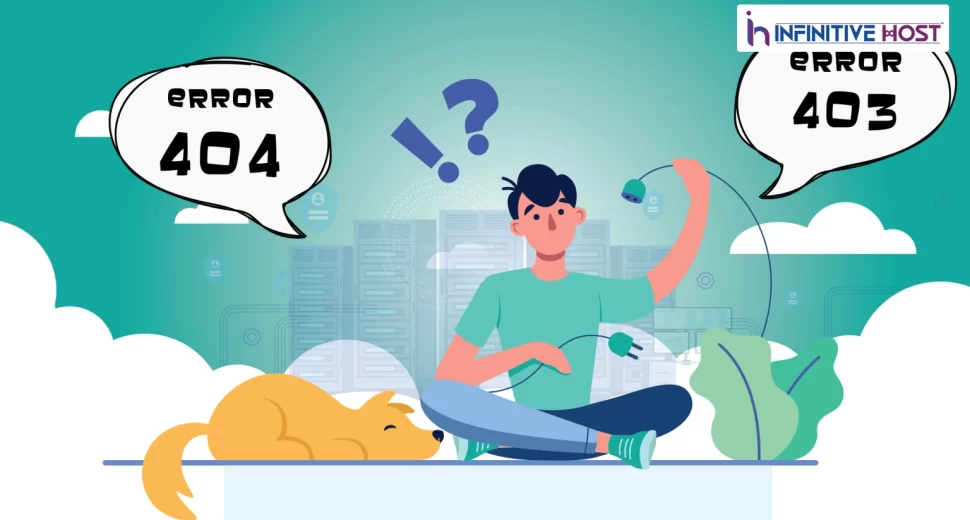
You are looking at any site, click a link, and instantly get a completely blank page with a cold, non-beneficial message. Either it says the web page wasn’t found, or you are told you are not allowed in. These are the two general HTTP error codes that irritate users and silently harm your brand every day: the “404 Not Found” and the “403 Forbidden.” Knowing about them thoroughly—not only surface-level—is what divides a well-maintained site from one that poorly bleeds all traffic and trust.
Let’s just dive into it.
What Are HTTP Error Codes & Why Do They Matter?
Before diving into 403 and 404, it’s worth knowing about the bigger picture. HTTP error codes are consistent three-digit replies that web servers send back to browsers when something goes bad. They are simply grouped into classes, and the 4xx class especially shows client-side problems, meaning the problem generally falls under the request itself or the access configuration.
Both of these codes aren’t only technical glitches. For SEO purposes, every pending HTTP error code chips away at your crawl budget. For users, they are always an exit door. Google’s crawlers notice different patterns. If Googlebot keeps running into 404s and 403s on your website, your indexing simply suffers—and your search rankings follow.
HTTP ERROR CODE 404: Not Found
What It Means
The 404 HTTP error code is the internet’s most famous error. It means the server was successfully reached, but the specific page or resource requested simply doesn’t exist at that URL. The server is working fine — it just can’t find what was asked for.
What Causes a 404?
- A page was deleted without a redirect being set up
- A URL was changed or restructured (common after WordPress migrations)
- Someone typed the wrong URL or followed a broken external link
- A product, post, or portfolio item was removed from the site
- An incorrect internal link points to a non-existent page
On an error-free WordPress hosting environment, 404 errors most frequently spike right after a site migration, a permalink structure change, or a bulk post deletion. These are entirely preventable — if you plan ahead.
Real Impact of the 404 Error
Here’s what most blog posts won’t tell you directly: a single 404 won’t hurt you. A pattern of 404s absolutely will.
When Google Search Console starts logging dozens or hundreds of 404 responses, it signals poor site maintenance. Pages that once had backlinks pointing to them, now returning 404, are dead link equity — the value that could have been passed to your site is simply gone. In the case of a high-performance dedicated server setup, where you are managing a heavy amount of content, keeping on top of 404s via everyday log audits is basically a non-negotiable maintenance task.
How to Fix a 404 Error
1. Set Up 301 Redirects
This is the best standard fix for 404. A 301 redirect is the one that permanently points the past URL to the newly created one, passing link equity with that. In the case of WordPress, plugins such as Redirection or Rank Math’s redirect manager make the process quite easy without touching server files.
2. Restore the Deleted Page
If the web page was removed by accident, just restore it with the help of a backup or recreate it. Most of the Linux hosting with proper file permission setups consists of cPanel backups or JetBackup that can recover all deleted content within a few minutes.
3. Fix Broken Internal Links
Utilize different tools like Screaming Frog or Ahrefs Site Audit to crawl your website and classify every internal link pointing to 404 pages. Troubleshoot them at the source.
4. Create a Custom 404 Page
When a 404 is unavoidable—maybe someone typed a URL wrong-a well-designed custom 404 page keeps users engaged instead of bouncing. Include a search bar, popular links, and a friendly message. This is good UX, and it decreases all the SEO damage.
5. Check Google Search Console
The Coverage report in Google Search Console flags all pages returning HTTP error codes, consisting of 404s. Check it weekly and troubleshoot flagged URLs constantly.
HTTP ERROR CODE 403: Forbidden
What It Actually Means
The 403 HTTP error code is often confused with a 404, but they’re fundamentally different. A 404 means the resource doesn’t exist. A 403 means the resource exists—but the server is refusing to show it to you. You’ve been blocked at the gate.
This is an access control error. The server understood your request perfectly. It just said no.
What Causes a 403?
- Incorrect file or directory permissions on the server
- A missing or misconfigured index.php or index.html file
- IP address blocking via .htaccess or firewall rules
- Hotlink protection blocking direct access to files
- A security plugin (like Wordfence) flagging your IP
- Attempting to access a directory that has no index file and directory browsing is disabled
On Linux hosting with proper file permissions, 403 errors are almost always a permissions misconfiguration. This is the first place to look.
The Permissions Problem? Explained.
Every file and folder on a Linux server has a permission value. For web servers to serve files correctly:
- Files should be set to 644 (owner can read/write; group and public can only read)
- Directories should be set to 755 (owner can read/write/execute; others can read and execute)
When permissions are set to something like 777 (fully open) or 600 (too restrictive), web servers either refuse to serve the file or consider it a security risk. Either way — you get a 403.
On a GPU dedicated servers with secure configuration environment or any server with strict security policies, the wrong permissions will trigger 403 errors instantly. Hardening a server properly means getting permissions right from day one.
How to Fix a 403 Error
1. Fix File & Directory Permissions
Log in via FTP or SSH and correct the permissions. In cPanel, you can do this through the File Manager. With the help of command line:
bash
find /public_html -type f -exec chmod 644 {} \;
find /public_html -type d -exec chmod 755 {} \;
This recursively sets the correct permissions across your entire public directory.
2. Check Your .htaccess File
A corrupted or incorrectly edited .htaccess file is a frequent trigger. Rename it temporarily to .htaccess_old and see if the 403 clears. If it does, regenerate a clean .htaccess from WordPress Settings and then go for Permalinks.
3. Include an Index File
If a directory has no index file and directory listing is also disabled, the server shows a 403 error. Then just upload a blank index.html to the folder as a placeholder.
4. Disable Interfering Security Plugins Temporarily
If you feel fishy and find that a security plugin is blocking access, deactivate it for some time. Different tools like Wordfence and iThemes Security sometimes block authorized users aggressively. Whitelist your current IP in the plugin settings.
5. Contact Your Provider
If the above steps don’t resolve it, the block may be at the server or firewall level — especially on a stable cloud hosting platform with network-level security rules. Infinitive Host, for instance, provides 24/7 expert support that can diagnose server-side 403 blocks within minutes, something shared hosting providers often can’t offer.
Hosting Infrastructure & Its Important Role in Avoiding These Errors
The hosting environment you select has a direct impact on how frequently these HTTP error codes appear. A poorly managed server throws 403s due to automatic permission resets during updates. An underpowered server creates cascading 404s when a database goes down, and dynamic pages can’t load.
Premium GPU server solutions and advanced dedicated server setups are engineered by keeping the stability point in mind. They rarely produce permission errors because they’re configured by experienced engineers who understand exactly how web servers interact with file systems. For brands where uptime directly impacts profit, investing heavily in enterprise-level infrastructure is the advanced and long-term fix for chronic HTTP error codes.
Infinitive Host offers hosting environments — from Linux hosting with proper file permissions to GPU dedicated servers with secure configuration — designed to eliminate these errors at the infrastructure level, so you spend less time firefighting and more time growing.
Conclusion
The HTTP error codes 403 and 404 are two of the most impactful issues a website can face — one silently blocks users, the other erases pages from existence. Both damage user experience. Both hurt SEO. And both are entirely fixable when you understand their root causes.
Audit your site regularly, get your permissions right, set up proper redirects, and choose a hosting partner that takes server health as seriously as you do.